Lightroom Classic 15.0 added sensor dust removal. It’s called Dust, under Distraction Removal in the Develop module (Adobe announcement). That’s good news for anyone fighting sensor spots on digital photos, but it isn’t designed for dust on film or slide scans, where the dust is different on every frame.
If you have scanned film or slides, many of them probably show unsightly dust and fibers. At its worst, the whole collection can have a dirty feel that distracts from the images. Until now, cleaning them has meant painstaking work with the healing brush in an image editor. That’s where DustMagic is in a different league.
The short version
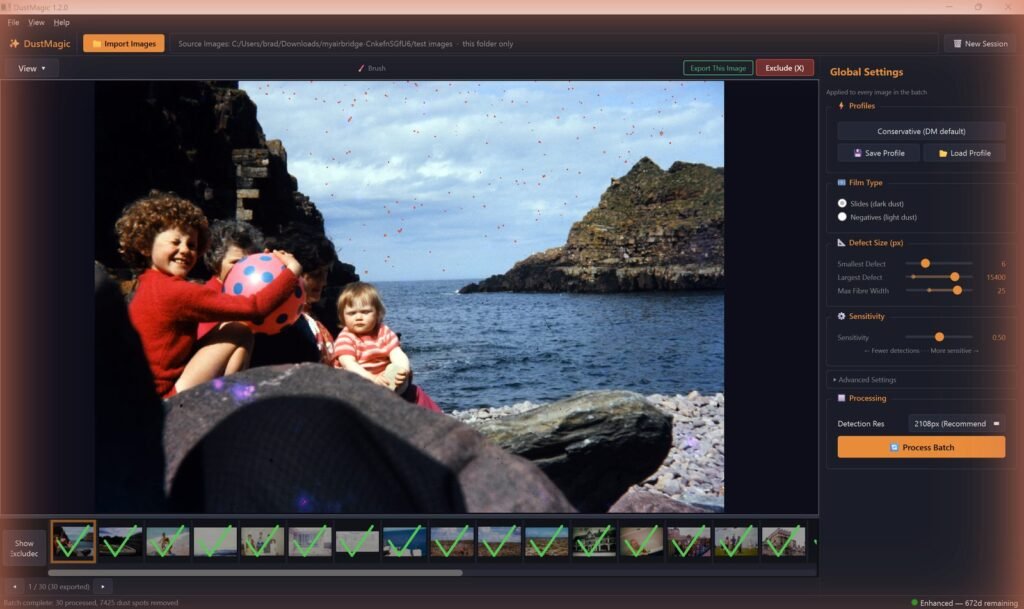
- DustMagic is faster and doesn’t need any image editing software. Point it at a folder of TIFF or JPEG images, preview and tune a profile for your dust, and DustMagic cleans every image, saving the results in a new
cleanedsubfolder. Touch up any difficult images by hand. - If you use Lightroom Classic. DustMagic installs its plugin in one click, so you can select a batch of images in Lightroom and clean them in DustMagic with a combination of automatic detection, the Smart Brush and manual spotting. More in Use both together below.
- If you prefer Photoshop. The free Photoshop script that DustMagic installs sends one image at a time to DustMagic and back into Photoshop. For batches with Photoshop or any other editor, clean the images before you import them, or clean the files you export afterwards. If a file will be saved several times, use TIFF rather than JPEG.
What makes DustMagic different
- Your image stays on your computer. There is no cloud processing. Nothing is generated: dust is repaired using only the pixels in your own scan, so your image isn’t labeled as AI-generated, as images edited with generative AI tools can be.
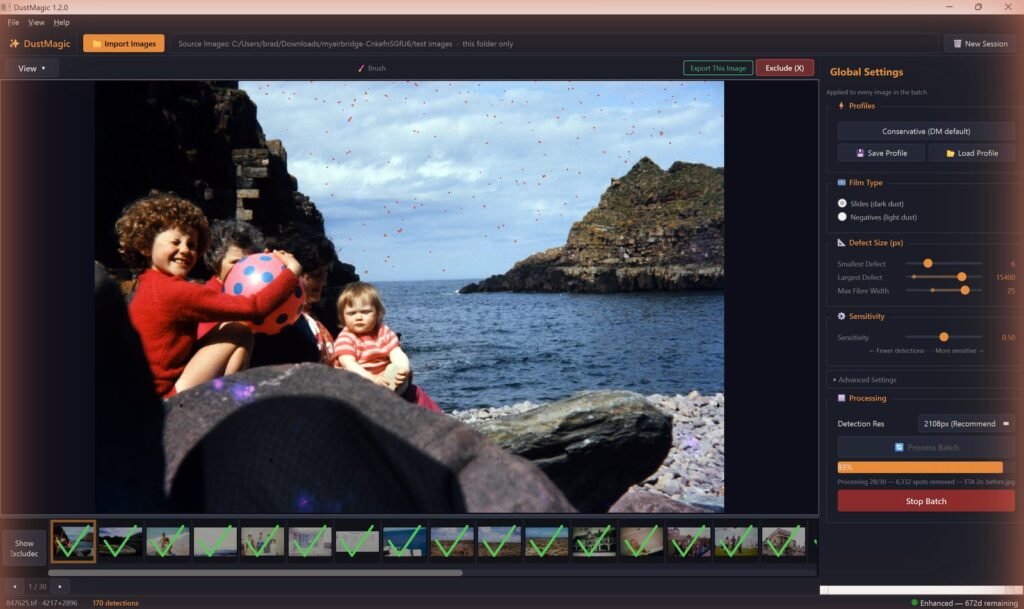
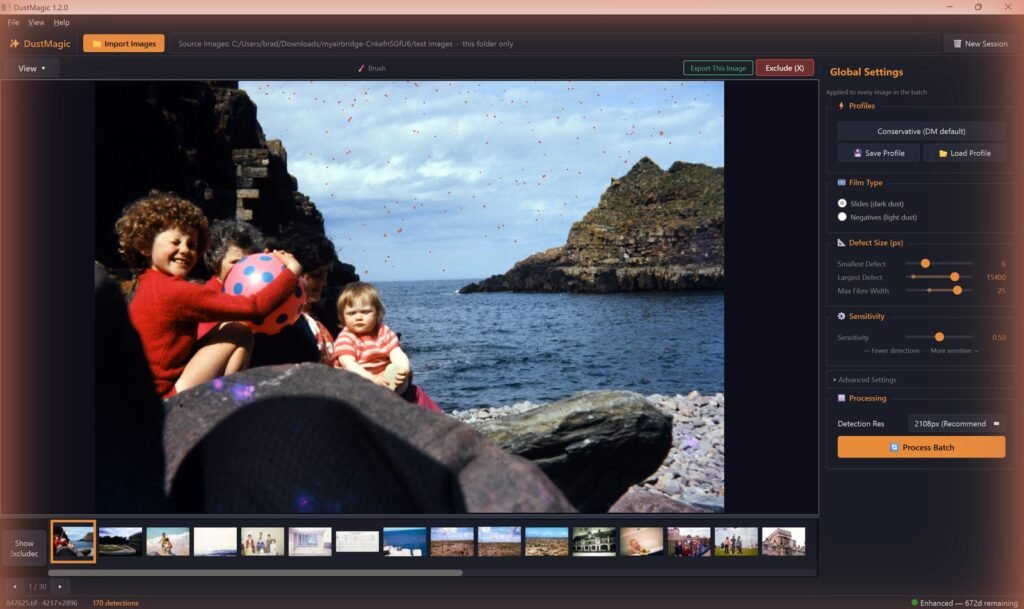
- Automated dust detection and removal for a whole folder. Import your scans and choose dark or light dust. Instantly see the effect of the Sensitivity and Minimum Contrast sliders on a few of your images, then click Process Batch. Optionally include all subfolders as well.
- Parallel processing. DustMagic cleans the images in parallel on your CPU. More cores mean faster batches, and no expensive graphics card is needed.
- Instant preview as you browse. Detection runs automatically as you click through the filmstrip, so you can see what will be removed before you commit. If you touch up an image with the Smart Brush, DustMagic asks you to export it before you move on, and the batch run then skips it.
- Nothing to undo. Cleaned copies go to a
cleanedsubfolder and your originals are never modified.
The Smart Brush Tool: for stubborn spots
Some images may have dust or fibers that fall outside the settings you chose for the rest of the batch. DustMagic keeps the fix in the same window:
- Press B to toggle the Smart Brush on and off.
- Left-click a missed speck. The Smart Brush picks out the dust under the brush and leaves the detail around it alone.
- Right-click to remove a false positive.
- Scroll to resize the brush, then click Export This Image.
So you get batch speed for the whole roll and manual control for the one image that needs it.
Use both together
You don’t have to leave Lightroom. DustMagic ships with a Lightroom Classic plugin: select your scans, choose File → Plug-in Extras → Edit in DustMagic, and cleaned copies come back into your catalog, stacked with the originals. Keep Lightroom’s Dust tool for sensor spots on your digital shots, and let DustMagic do the film. Setup steps are in the Lightroom integration guide. The Lightroom desktop (cloud) app isn’t supported.
Comparing with Lightroom’s manual Spot Removal instead? See DustMagic vs Lightroom Spot Removal for film scans.
Try it on your own scans
The free trial processes unlimited images, full batches included, and shows full results on screen; exported images are watermarked. If you like the results, a 12-month license ($59) removes the watermark. Windows and Mac.