Scanning film with a DSLR or mirrorless camera is quick and sharp. A macro lens, a light source and a holder such as the Nikon ES-2, a Valoi easy35, a Negative Supply carrier or an Essential Film Holder can digitize a roll in minutes.
The catch is dust. A camera captures no infrared channel, so the infrared cleaning built into dedicated film scanners (Digital ICE, iSRD) isn’t possible. Negative Lab Pro says the same. Every speck and fiber on the film ends up in your file, and at camera resolution they’re crisp.
Your options
- Clean the film first. A blower, an anti-static brush and a clean workspace always help. They never get everything.
- Heal by hand in Lightroom or Photoshop. Fine for a few favorites, but a dusty roll can take an evening.
- Lightroom’s automatic Dust tool. Adobe built it for camera sensor dust and has said scanned negatives aren’t in scope. See Lightroom dust removal for film scans.
- Batch dust removal with DustMagic. Built for exactly this job: a folder of film scans, cleaned in one pass.
A camera-scanning workflow with DustMagic
- Shoot the roll in RAW, as you do now.
- Convert your negatives in your usual tool (Negative Lab Pro, Lightroom, or another converter) and export 16-bit TIFFs. DustMagic works on TIFF and JPEG files, so it slots in after conversion and before color grading.
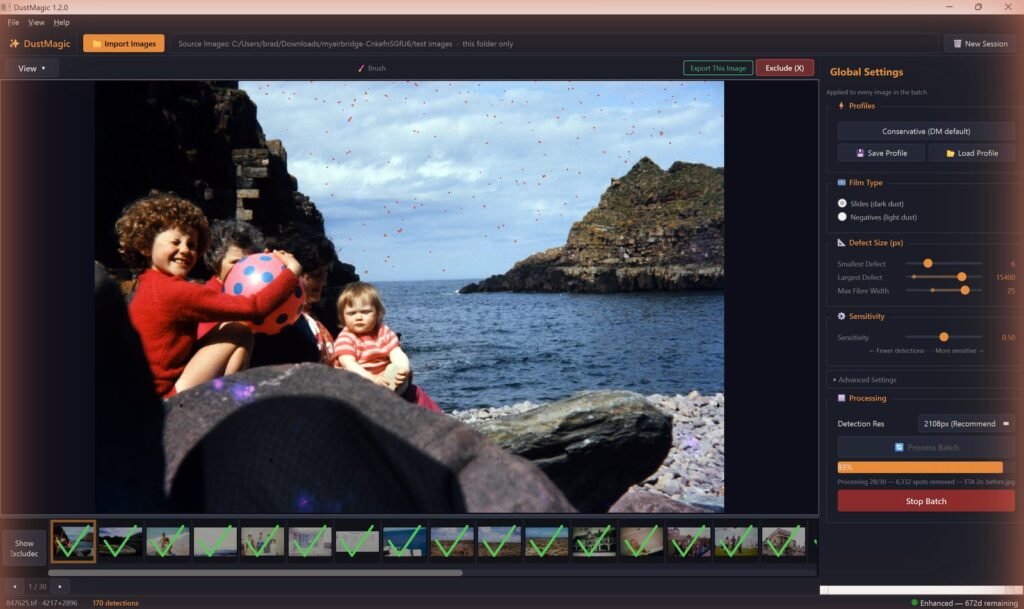
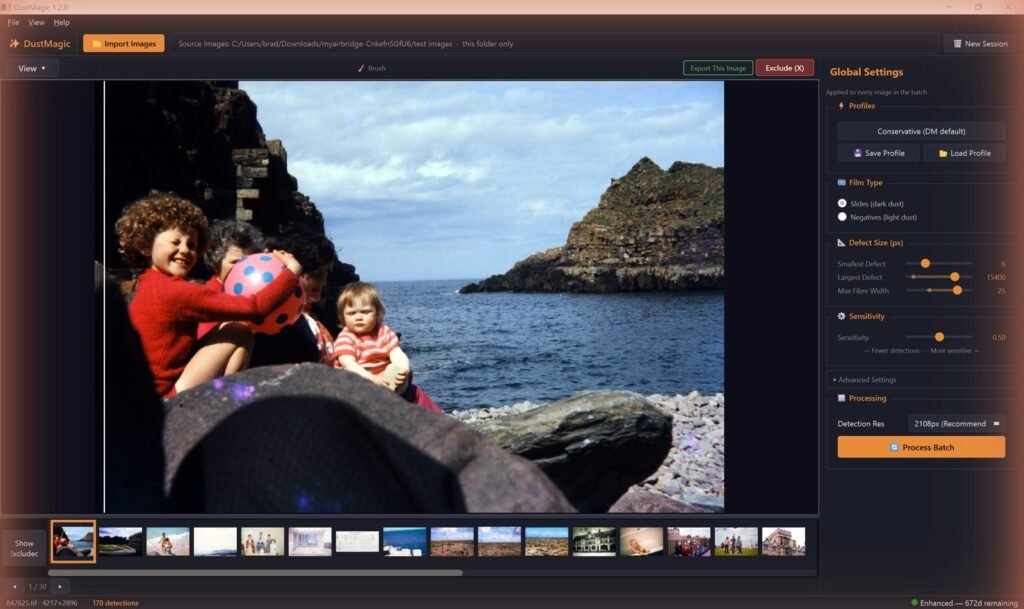
- Import the folder into DustMagic and set Film Type. Slides (dark dust) for positives, Negatives (light dust) for converted negatives, where dust shows up bright.
- Check the Detection Overlay. Red marks everything DustMagic plans to remove. Sweep the Split View across faces and fine detail.
- Click Process Batch. Roughly 100 images in about 3 minutes*. Cleaned copies go to a
cleanedsubfolder and your originals aren’t touched. - Fix the odd miss with the Smart Brush Tool (press B), then grade as normal.
*Speed depends on your processor, image size and detection settings.
Working in Lightroom Classic? The free plugin (switch it on from DustMagic’s Help menu) sends selected photos to DustMagic and returns cleaned copies to your catalog, next to the originals. Convert your RAW negatives to TIFF or JPEG first, as above. See the Lightroom integration guide.
Why camera scans suit automatic detection
- They’re sharp. Dust sits on the film surface, and DustMagic’s detection is tuned for crisp camera scans.
- Dust looks different on slides and negatives. It’s dark on slides and bright on converted negatives. DustMagic’s dark-bright detection handles both, so choose the right Film Type. Black-and-white and Kodachrome scans, which infrared cleaning struggles with, work too.
- Grain stays. DustMagic removes surface contamination, not film texture, so your scans don’t get the smoothed look of heavy healing.
- Everything stays on your computer. DustMagic runs offline, on Windows or Mac, with no GPU required.
What it won’t do
- RAW files directly. Convert first, then clean the TIFFs or JPEGs.
- Sensor dust on digital photos. DustMagic is built for film scans.
FAQ
Does it work with Negative Lab Pro?
Yes, as a separate step. Convert in Negative Lab Pro, export TIFFs, clean them in DustMagic, then grade.
Which holder or copy stand does it work with?
Any. DustMagic works on the exported image, so it doesn’t matter whether you use a Nikon ES-2, Valoi, Negative Supply, Essential Film Holder, Digitaliza or a DIY setup.
Can it clean medium format scans?
Yes. DustMagic handles very large TIFFs. Memory and disk speed become the limit before pixel count does.
Are my images uploaded anywhere?
No. All processing happens on your computer.
Try it on your own scans
The free trial processes unlimited images, full batches included, with a watermark on the output. If you like the results, a 12-month license ($59) removes the watermark. Windows and Mac.