DustMagic includes a free Lightroom Classic plugin and a Photoshop script, and works with any other editor, such as Capture One, through TIFF or JPEG files.
Lightroom Classic — Plugin Install
DustMagic detects Lightroom Classic on first launch. To install the bundled plugin:
- Go to Help → Lightroom Integration…
- If Lightroom Classic is detected and the plugin isn’t yet installed, click Install Plugin.
- Restart Lightroom Classic.
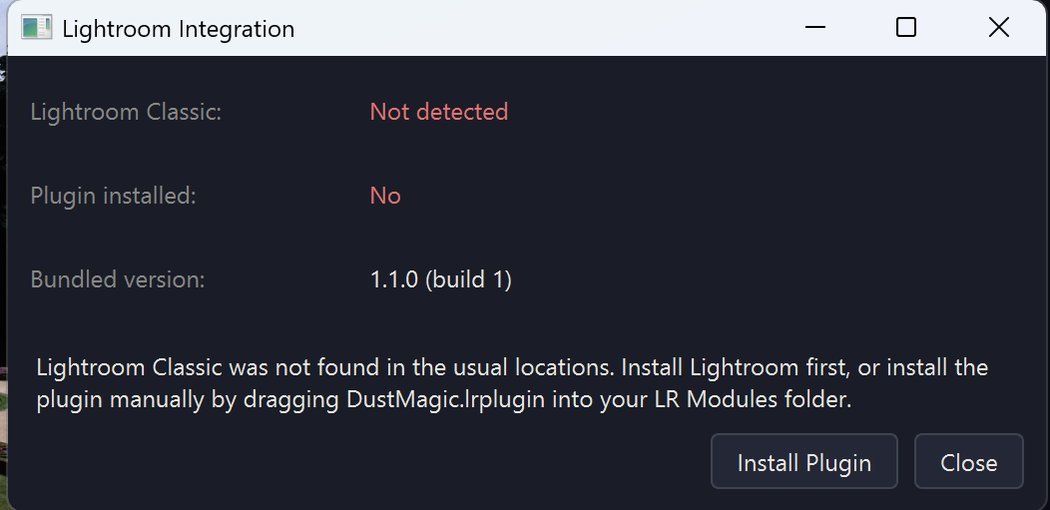
If Lightroom Classic isn’t detected (e.g. you keep it in a non-standard location), the dialog tells you so — install it first, or drag DustMagic.lrplugin into your Lightroom Modules folder manually.
The plugin supports batch processing: select photos in Lightroom Classic and send them to DustMagic. Cleaned copies come back into your catalog as “-Edit” files, stacked with the originals. The plugin works with Lightroom Classic only, not the cloud-based Lightroom app.
Detailed plugin usage: 3.1: Lightroom Integration Guide.
Photoshop — Script
DustMagic includes a Photoshop script, DustMagic Batch, that sends images to DustMagic and brings the cleaned result back as a new layer. It cleans the open image, every open image in one go, or a whole folder through a Photoshop action.
- Go to Help → Photoshop Integration… and click Install. (On Windows the first install can ask for administrator rights.)
- Restart Photoshop, open an image and choose File → Automate → DustMagic Batch….
Options: 3.2: Photoshop & Other Editors. Batches, actions and layers: 3.4: Photoshop: Batch Cleaning, Actions and Layers.
Other Editors — TIFF Export and Import
Any other editor, such as Capture One, works through TIFF or JPEG files:
- Export your images as TIFF (or JPEG).
- Process them in DustMagic.
- Re-import the cleaned files from the
cleaned/subfolder.
Detailed workflow: 3.2: Photoshop & Other Editors.
When to Clean
You can clean before, during or after editing — DustMagic fits whichever order suits you:
- Before editing — clean your TIFF or JPEG scans in the DustMagic app, then import them into any editor.
- During editing — use the Lightroom Classic plugin or the Photoshop script.
- After editing — export TIFF or JPEG files from your editor, then clean them in the DustMagic app.
RAW files (NEF, ARW, CRW and similar) need to be developed and saved as TIFF or JPEG first.
Next Steps
- Lightroom workflow detail — 3.1: Lightroom Integration Guide.
- Photoshop and other editors in detail — 3.2: Photoshop & Other Editors.
- How DustMagic exports cleaned files — 3.3: Exporting & Saving Cleaned Images.