DustMagic’s output is opinionated by design — there are no format/quality dialogs to configure. Cleaned files appear in a predictable place every time.
Where Files Go
- Cleaned images — saved into a
cleaned/subfolder inside your source folder. - Originals — never modified.
So a folder of scans at ~/Scans/2024-Wedding/ gains:
~/Scans/2024-Wedding/cleaned/— the cleaned files.
cleaned/ output folder before it runs.Output Format
Cleaned files retain high resolution and full bit depth, even for large image files:
- TIFF in → TIFF out (8-bit and 16-bit both preserved, including compression).
- JPEG in → JPEG out (high quality, no extra compression added).
For maximum quality, scan and process as 16-bit TIFF.
Trial mode: all output images — batch and single exports — are watermarked. Activating a license removes the watermark (see 1.4: Licensing & Activation).
Two Export Paths
Process Batch (the whole folder)
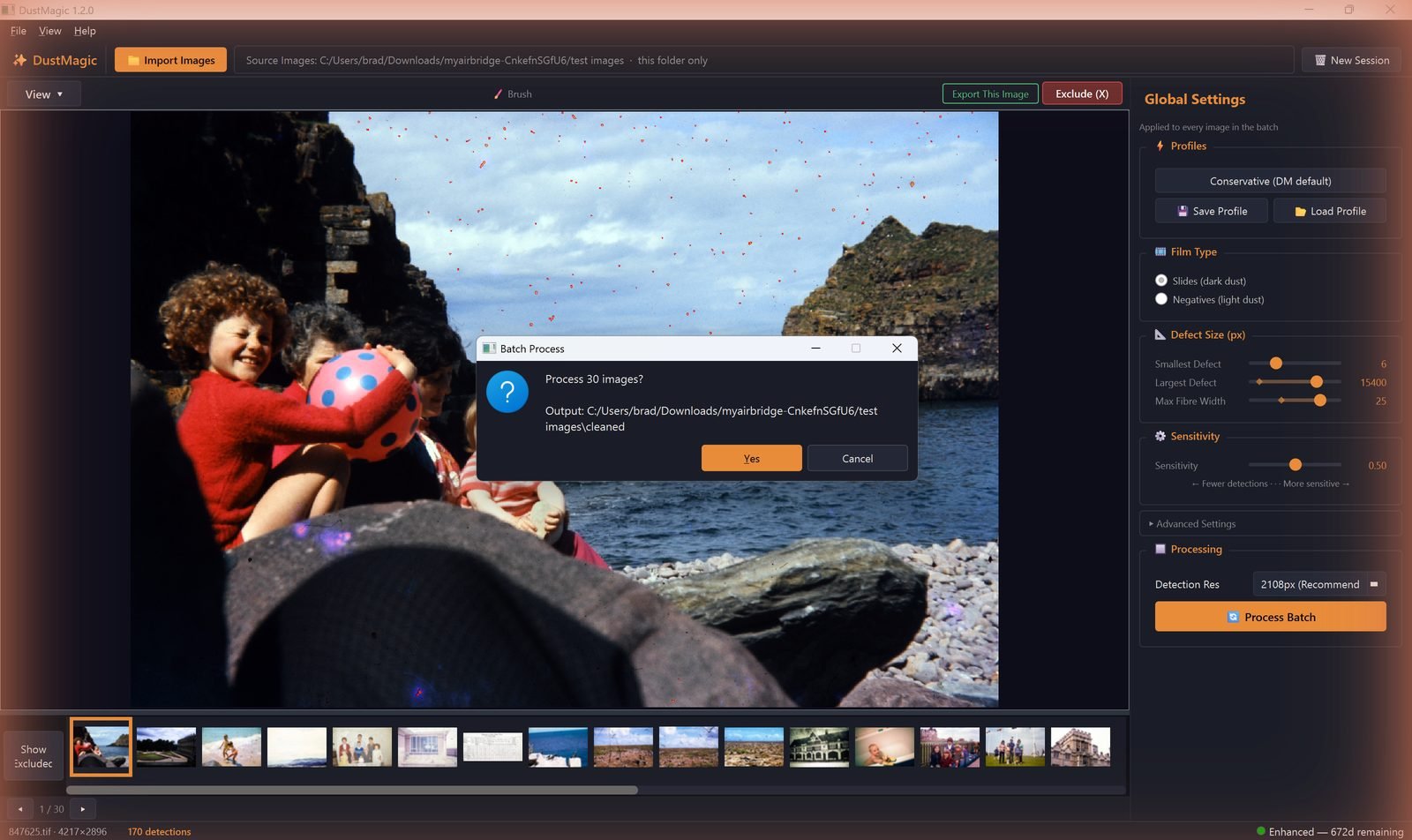
Click Process Batch. DustMagic processes every image in parallel and writes them to cleaned/. This is the standard end-of-session action.
Export This Image (a single image)
Click Export This Image in the toolbar to inpaint and save the current image individually, with any brush edits applied. The image is then removed from the remaining batch so Process Batch won’t reprocess it.
Use this when one or two images need manual touch-up and you want to handle them before running the rest of the folder.
Filenames
Cleaned files keep their original filename — they’re disambiguated by the folder. Re-running on the same source produces files of the same name in cleaned/; existing cleaned files are overwritten.
Verifying What Was Removed
- View the detection mask inside DustMagic — overlay it, use Mask Only (key 3), and zoom up to 20× to see exactly which pixels were inpainted.
- Use Split View (key 5) inside DustMagic to sweep before/after on individual images.
Archival Tips
- Keep originals in their own folder, separate from
cleaned/. - For long-term storage, prefer 16-bit TIFF with LZW compression.
- Back up before processing — DustMagic doesn’t touch originals, but disks fail.
Next Steps
- Tune what’s removed — 2.3: All Settings Explained.
- Lightroom round-trip — 3.1: Lightroom Integration Guide.